2019年12月22日星期日

Premium File Recovery Software For Mac

In today's interconnected world, data loss is one of the most damaging things. If you are looking for a Premium File Recovery Software For Mac on HFS or HFS+, here is the solution. Bitwar Data Recovery software for mac recovers deleted documents, music files, audio clips, images, graphics, and multimedia files from Mac hard drives without compromising on the existing data.

Install Bitwar Data Recovery for Mac

Free download and install Premium File Recovery Software For Mac - Bitwar Data Recovery software for mac on this URL: http://www.bitwar.net/data-recovery-software/. Then follow the instructions below to recover your deleted files. It is compatible with OS X 10.11 and later.
Tips: For the latest macOS 10.13 (High Sierra) system requirements, Mac users are not allowed access to system disk from apps. If you want to recover data from the system disk, please disable the system feature "System Integrity Protection (SIP)," see the guide on How to Disable System Integrity Protection (SIP) in macOS High Sierra (macOS 10.13)?

Step 1: Select the Partition or Device

Launch the program and select the partition/devices where you files deleted and then click "Next." 
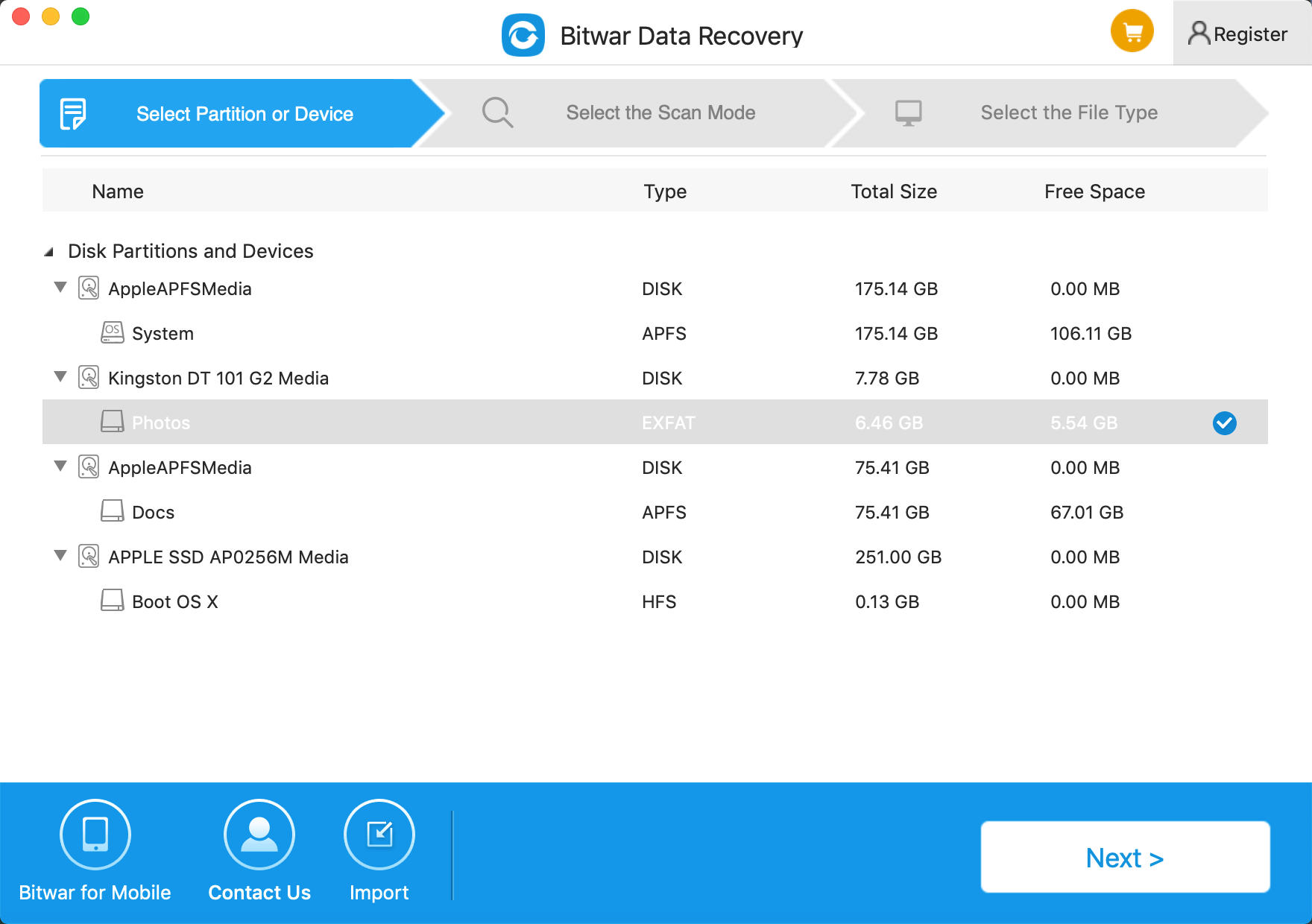
Select Device

Step 2: Select the Scan Mode

The quick scan mode can recover deleted files on a partition or device, such as files deleted by Command+Delete, emptied from the trash or removed by other software, etc. So select it and click "Next." If additional data have not overwritten files, it can be retrieved entirely in the condition of the files or directory structures. When you want to recover deleted files, select the "Quick Scan" and click on the "Next" button.
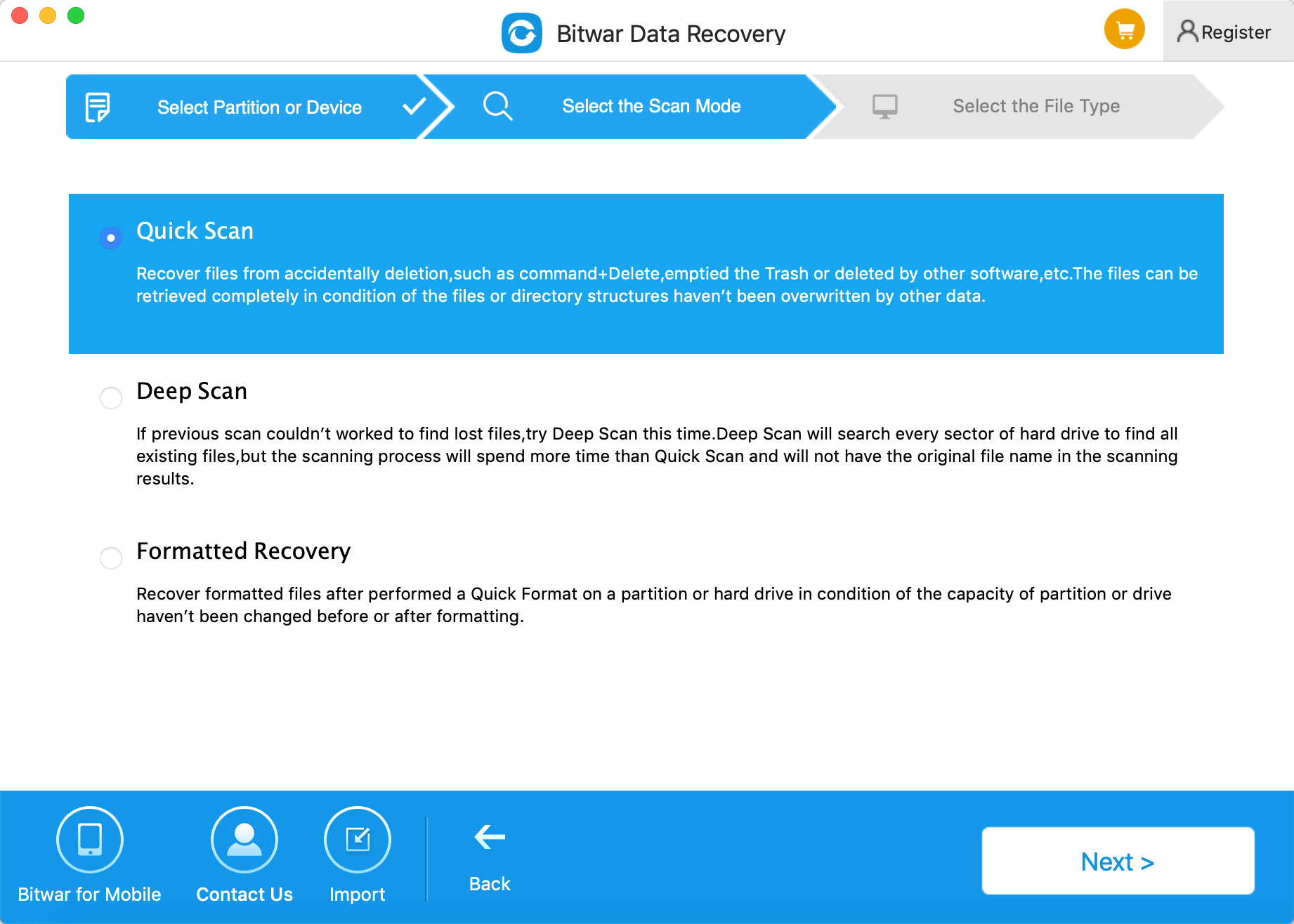
Select Scan Mode

Step 3: Select File Type

You can recover all kinds of files with Bitwar data recovery for mac. Select the types of deleted data and click "Next" to start scanning.
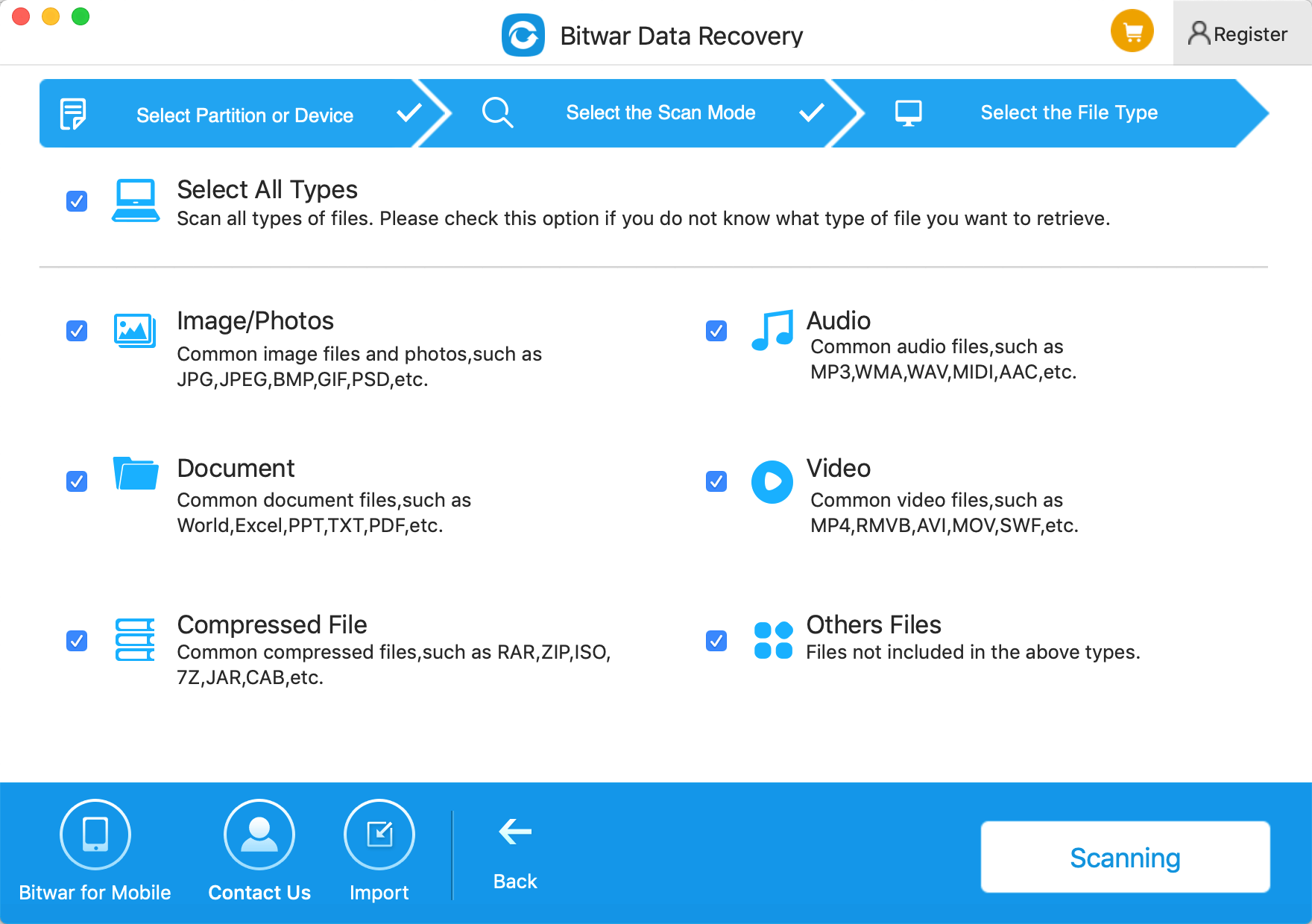
Select File Type

Step 4: Preview, Recover and Save Files

After scanning, by file name and type, you can quickly filter the files you've lost. You can preview them to check the data in advance, and then select the files and click "Recover" button to have them back. For other files types that can not be previewed, you can recover them directly back to your computer and decide whether to delete them again or not later.
Tips: Please DO NOT save the files into the partition or device where you deleted files.
 
If you can't find your files at quick scan result, go to scan again with "Deep Scan" on step 2. It will find all the data on the disk while it will take more time to complete the scan.

How to Recover Deleted Photos From Android Internal Storage?


There are many private and essential files on the smartphone, like contacts, pictures, music, video, etc. Most of them are stored in the internal phone storage. Some times we accidentally delete the items, and we need to figure out a way to recover deleted files back.
 
Technically, deleted photos will not be immediately gone. They will stay on internal phone storage until other new data or files to take up its storage space. And if your device is with Android, you can refer to this guide to recover deleted photos from Android Internal Storage.
 
Bitwar Android Data Recovery supports to recover deleted photos from Android internal storage. When you connect your Android phone to the computer, the program can recognize it and scan it. It will find all your lost files, no matter your data stored on the memory card or internal storage.
 
Try not to restart your device multiple times to retrieve your data back and don't reset your phone. Because after the factory setting your phone, you won't be able to recover its data. Firstly, stop using your phone right away. Don't use any app, take pictures, or play games. Secondly, be prompt and use a data recovery application as fast as you can. Here we offer a step-by-step guide to help you recover deleted photos from Android internal storage in the most natural way. 

Bitwar Android Data Recovery software supports two ways to recover lost data - Recovery for windows and application. We strongly recommend recovering lost data from Android device by Recovery for windows. The advantage is that you can save the recovered data on your windows, and It also reduces the possibility of data being overwritten, which can make data safely.

Download Bitwar Android Data Recovery on your windows and install it: https://www.bitwar.net/android-data-recovery-software/.

Read more about Bitwar Data Recovery and see detailed tutorials:How to Recover Deleted Photos From Android Internal Storage?

2019年12月6日星期五

Eassos Recovery Crack full version for Windows/Mac

You can free download Eassos Recovery Crack full version for Windows/Mac with the latest registration code, keygen, serial number, activation code, license code, etc. However, to prevent backdoor software and viruses destroying your PC and private information, we recommend the Eassos Recovery Free Alternative for Windows and Mac.
 
Data loss always happens on the hard drive, external hard drive, USB flash drive or SD Card due to accidental deletion, formatting or other improper operations.
 
If we lose a lot of important data on the computer, we need to find a good, fast and efficient data recovery software to restore them. From Google, we know that Eassos Recovery Crack is a data recovery tool which is capable of recovering lost data due to deletion, formatting, or virus infection. However, both the Eassos recovery and other common data recovery software are not free of charge.
 
Do not waste time finding Eassos Recovery Crack full version with the latest registration code, keygen, serial number, activation code, license code, etc. on the internet, because these programs are always packaged with the virus, malware, adware, spyware which may do harm to the system. 

Safe & free Eassos Recovery Crack Alternative
We completely understand users' feelings so that we would like to try our best to develop a 100% clean data recovery software and offer you a safe & free data recovery solution which can alternate the Eassos Recovery Crack.
 
Here are the main features of Bitwar Data Recovery:
 
Bitwar Data Recovery software has the same ability of Eassos Recovery which can recover lost or deleted files from storage devices. Including hard disk drive, external hard drive, USB drive, SD cards, XD cards, and so on. From these devices, you can recover audios, videos, pictures, archives, and documents. Whether you deleted these files or lost them due to virus attacks or accidental formatting, you can still have them back by using this software. 

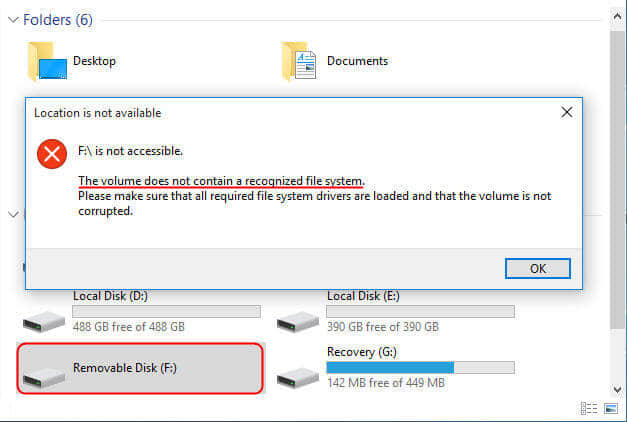
The Volume Does not Contain a Recognized File System

If you received "The volume does not contain a recognized file system" in USB/external hard drive/partition in your computer, don't worry. This article offers solutions to fix the issue. You can recover data from the RAW hard drive or inaccessible USB/external hard drive/SD card with Bitwar Data Recovery Software.

What is "The Volume Does Not Contain a Recognized File System"
During the use of the computer, many users may encounter the issue of "The Volume Does Not Contain a Recognized File System". And it occurs not only on the computer's hard drive, but also on external devices such as external hard drives, USB flash drives, and SD cards.
 
Now, we'd like to tell you the good news - this problem can be fixed and all data saved on the inaccessible drive can be recovered.
First, to avoid damaging important files lost by the storage device, we will show you how to recover data from a damaged disk or external device.
The Volume Does Not Contain a Recognized File System
 
What is the RAW file system?
The file system on PC is used to manage how data is stored and retrieved. Without a file system, information stored on the storage device would be a mix of large amounts of data which will lead to inaccessible files. Information can be easily isolated and identified by dividing the data into sections and naming each one of them.
 
The structure and logic rules that used to manage the groups of information and their names is a file system. There are many different kinds of file systems, including FAT (FAT12, FAT16, FAT32), exFAT, NTFS, HFS, HFS+, ext2, ext3, VMFS, UDF, etc.
 
RAW is the default file system of CD-ROM recognized by the operating system. When burning DVD, you can see a RAW mode that extracts user data and subchannel data.

However, other storages such as hard drives and USB drives are formatted as FAT or NTFS. If storage devices become RAW, then it can't be accessed, as RAW is regarded as an error of file system. If you try to open RAW partition, you will get an error messages such as "You need to format the disk in drive G: before you can use it." 

Why does "The Volume Does Not Contain a Recognized File System" problem occur?
The following reasons could lead to file system unrecognized problem:
  • reinstallation of system.
  • getting attacked by virus.
  • users' misapplication.
  • abnormal shutdown of computer.
  • file system conversion failure.
  • accidental deletion of necessary system files.
  • physical failures like bad sector.
  • unstable or insufficient power supply.

  • The importance of recovering data in advance?
Before resolving "The volume does not contain a recognized file system" error, all you need to do is find a RAW drive recovery software to get back the files. Offering powerful and easy RAW recovery solution, Bitwar Data Recovery allows you to recover lost data from the RAW drive directly, such as digital camera, hard drives, SD cards, Memory cards, phones, media players and portable drives. It can also recover audios, videos, pictures, archives, emails, and documents from these devices.

Jak odzyskać usunięte lub utracone partycje na dysku Windows?

  Po uruchomieniu komputera zauważyłeś, że jedna z partycji zniknęła? Twoje ważne dane mogą być przechowywane na tej partycji. Jak odzyskać ...