2020年5月25日星期一

How to Fix USB Ports Not Working Error

"USB ports not working" is a common error during the computer operation. In this case, the problem lies with the USB ports and not with any particular device. In this writing, we will talk about how to solve this problem with some effective ways, check it and find how.


A lot of computer users tell us that "USB ports not working in Windows 10/8/7" and usually require the way to solve. USB ports enable USB devices like USB flash drive, SD card, external hard drive, pen drive, etc. to be inserted to a computer in order to transfer data through digital cables. But when USB ports stop working, your PC won’t be able to read and recognize any of those portable devices. This leads to users facing the issue of USB ports not working error, in which USB ports stop recognizing any USB device, whether it be USB Mouse, Printer, Pen drive, Keyboard and so on.

Reasons for USB Ports Not Working

You may experience having USB port trouble all of a sudden. There can be many reasons for Windows did not recognize your device. When users face problems with USB drive not showing up, most people believe that their drive is dead. However, this is only the worst-case scenario. There are also some other possible reasons:

1. The first reason should be as a result of an incomplete or unsuccessful connection between your USB device and your computer through the USB port;
2. The second possible reason that can result in problematic USB ports is that the installed USB controller drivers have been corrupted or deleted;
3. And considering the claim of some users, the third reason why USB ports are not working lies in the specific device drivers of your USB device. It’s either the specific USB driver is not yet installed on your PC or it has been corrupted.

Hence, if this has ever happened with you, don’t worry; we’ve worked out some practical solutions to help solve the problem.

Ways to Fix USB Ports Not Working Error

Solution 1: Restart Your Computer

Sometimes you may be lucky to find the easiest solution for solving problems. The easiest way is to restart your computer, or simply turn it off and then turn it back on again when the error is an unavailable USB port.
After the computer has finished restarting, go ahead and insert your USB device. If it works, that means the error has got itself over. A lot of things get updated under the hood when you restart a computer, which can surely fix a lot of different problems.

If you aren't that lucky, then you'll want to move on to more useful solutions.

About another solutions,please read: 5 Ways to Fix USB Ports Not Working Error

2020年5月11日星期一

Windows was unable to complete the format

we will tell about how to recover data from external device that cannot be formatted and guide you how to fix Windows was unable to complete the format step-by-step.

Sometimes when you right click the Pen drive/USB Flash Drive/SD Card and try to format it, there's an error prompt Windows was unable to complete the format, this may cause by wrong disk format or source file corrupted.

3 methods to fix Windows was unable to complete the format error.

1. Right click This PC, choose Manage and then turn to Disk Management. You can right click the drive that is giving the error and choose Format.
2. Run command prompt, right click Start Button and run Command Prompt (admin) , type Format G:  /fs: ntfs. You can change F to other drive letter of your external device, and change NTFS to FAT32 if you don't need NTFS file system.
3. Recover data from Pen drive/USB Flash Drive/SD Card with Bitwar Data Recovery.

How to recover data with Bitwar Data Recovery.

Step One. Download and install Bitwar Data Recovery and then launch the software.
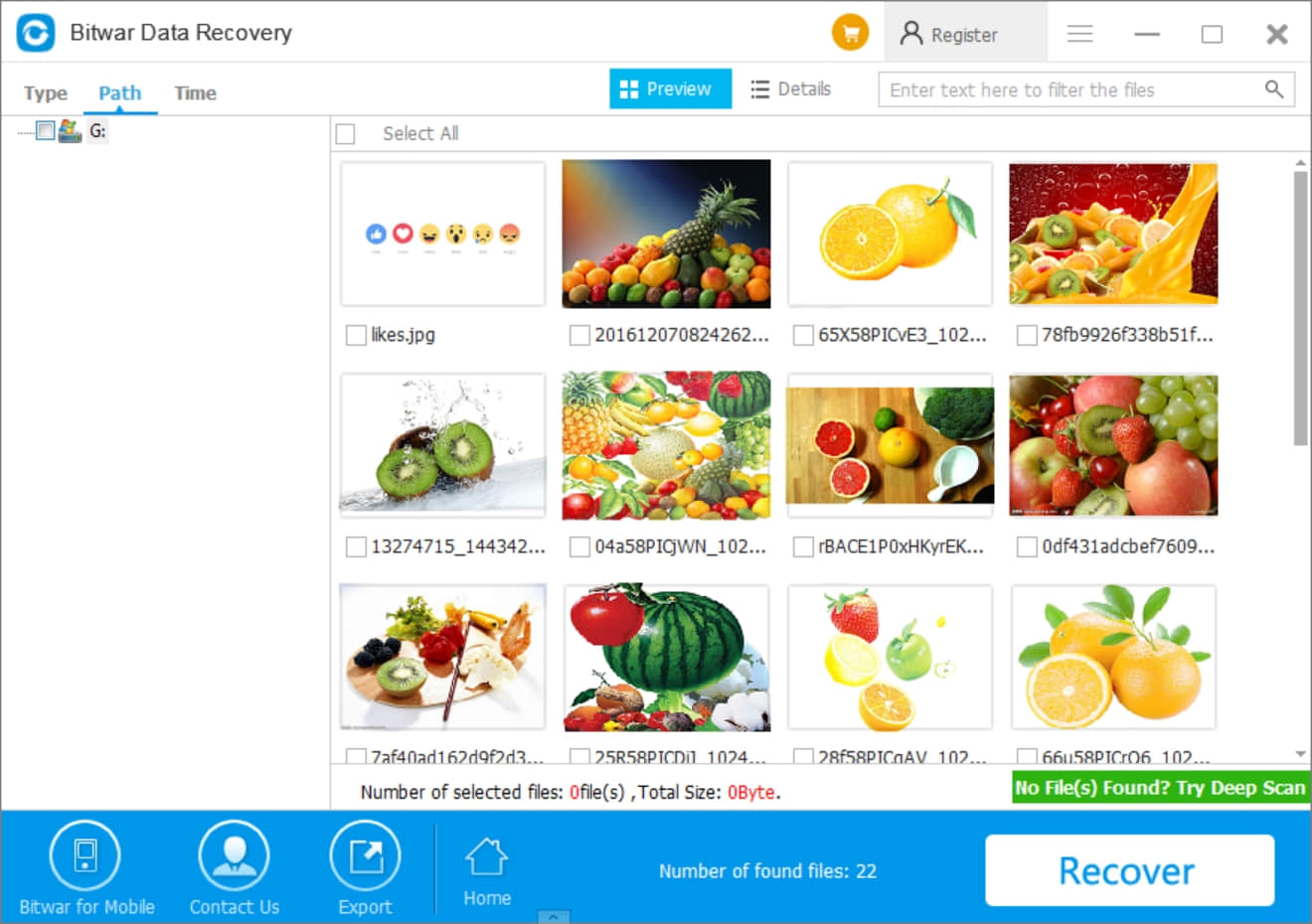
Step Two. Choose the external device and then click Next.
Step Three. Select all file types if you don't know what kind of types lost.
Step Four. Double-click to preview the file and then hit Recover.

best photo recovery app

Bitwar Data Recovery it's free pen drive data recovery software that can recover accidentally deleted or formatted photos, images, documents, video, audio, archive files from hard drive, memory card, external USB drive, etc.

By following the above tutorial, you can recover your important data from Pen drive/USB Flash Drive/SD Card easily and quickly. Hope the above solution can help you to fix Windows was unable to complete the format error.

Read more? How to fix "Windows was unable to complete the format"

100% Free Data Recovery Software Pro Crack

The data recovery programs become very common now, especially in 2019, a lot of people are using them for easy data recovery. But most of such programs are payable; so, users look for a free version of the said program or data recovery software free download full version with crack 12.9.1 from the internet.
Photo by rawpixel.com from Pexels
But developers are taking strict steps so that their developed program could not get pirated. The security has become very strict, and users are having trouble to find data recovery software crack for restoring data from PC, Mac, hard disk, external hard drive, USB flash drive, SD memory card, etc., so, if you are having the same issue, let us introduce you a 100% best free and wizard data recovery software.

How to Get Data Recovery Software Crack

It is not easy to find a Data Recovery Software Professional Crack nowadays. As the developers aren’t wasting any time to makes their respective programs more advanced and tightening the security.
Although, they are also hiking the price, the license subscription price ranges from $69 to $ 300 or even higher for business edition, which is the reason users are looking to crack file recovery software using serial number, keygen generator, kickass, license key, code, activation code and even searching from Google for such full version or unlimited data recovery software every day. This is a complete waste of time.
Although some of the websites claim they have the complete free data recovery software crack and requires you to click on some Ads before getting the download address, but do not trust them, after clicking on the Ads you are still reaching to nowhere but wasting your precious time.

Stop Wasting Your Time with Data Recovery Software Crack

Data recovery is a very delicate procedure and also very time-sensitive. You can waste your time by searching serial number, keygen, license code, registration number, or even activation codes. But you only have a limited amount of time before the recovery of your lost data becomes completely impossible.
After a certain time, the files can be overwritten. But over that, if you download such files from the internet, you are taking the risk of your computer getting infected by virus and malware or exposing your privacy photos & videos to an unwanted person. So, we think it is better to use free data recovery software instead.

100% Free Data Recovery Software

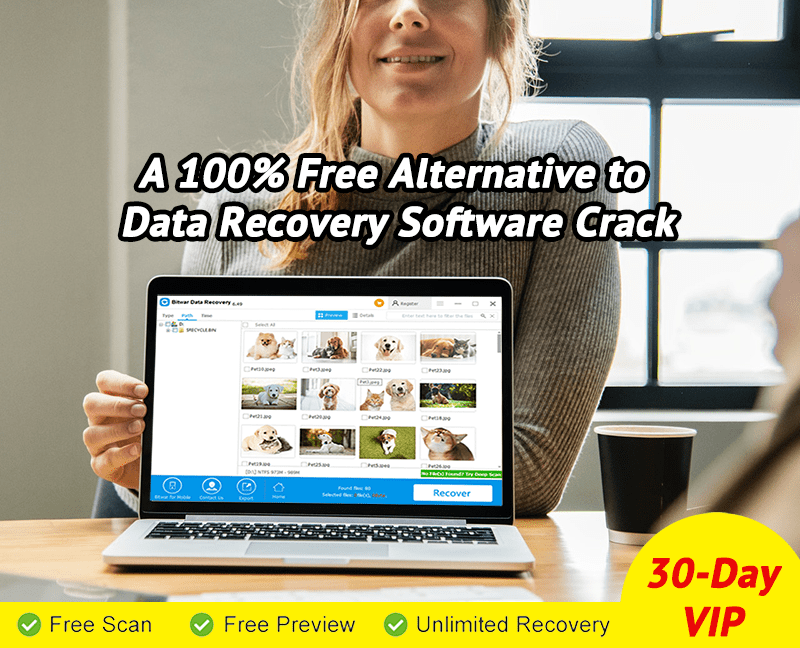
Among all the other data recovery programs in the market, we strongly recommend you to use Bitwar Data Recovery. First of all, the program is 100% clean without any virus, backdoor, malware, spyware, Trojans. Secondly, you can share the software with one of your social profile to win a free VIP account without limits on data recovery amounts in 30 days; thirdly, if you are still having issues to use the software properly, you can always ask for help via official website online service, software interface’s customer service and email support.


Jak odzyskać usunięte lub utracone partycje na dysku Windows?

  Po uruchomieniu komputera zauważyłeś, że jedna z partycji zniknęła? Twoje ważne dane mogą być przechowywane na tej partycji. Jak odzyskać ...