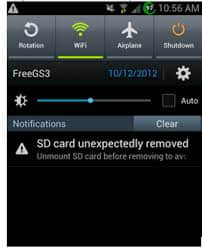
Possible Reasons for SD Card Removed Unexpectedly
Why Does My Phone Keep Saying SD Card Unexpectedly Removed? The followings are the possible reasons.1. The connection between your phone or digital camera and SD card is loose so the device cannot detect the card successfully.
2. The SD card is not formatted. In this case, you can format your SD card. However, formatting will delete all data on the SD card. Therefore, please make a proper backup before formatting.
3. The SD card is incompatible with your device. It recommends to check the version and instructions of both the card and your phone or digital camera to see whether they are matched.
4. Your phone or digital camera is damaged. You can connect your SD card to PC to check whether it is working normally. If it works fine, then it means that there is no issue with your SD card. If not, your phone or digital camera is damaged.
5. SD card has been attacked by a virus. You can run antivirus software to scan the card and remove virus.
6. The SD card is broken after long-term use. It is time to buy a new one.
How to recover data from the SD card?
We use Bitwar Data Recovery to repair SD card data. Bitwar Data Recovery is a professional memory card data recovery software, which specially designed to recover lost/deleted photos, videos, and other files from different types of storage devices including hard disk, SD card, USB disk, etc. Besides, it can help to recover lost data without affecting the original data.Free Download Bitwar Data Recovery and install the powerful software on your Windows, and then launch it. Mac System installs Bitwar Data Recovery for Mac version. Then follows the steps below to recover data from SD card.


Step 1. Select the raw partition or device
Launch Bitwar Data Recovery software on your Windows and connect SD card to it. Select the SD card (no matter what file system is identified) and click "Next".Step 2: Select the Scan Mode
On this step, you can choose “Quick Scan” mode to recover lost files first, If you cannot find files after Quick Scan, try Deep Scan again. The deep scan will search every sector of hard drive to find all existing files.Step 3: Select the file types
Select the exact types of files you have lost, I suggest you choose “Select All Types” to recover all files back from SD card. Then click “Next” to start scanning.Step 4: preview and recover lost files
After the scan, you can filter the files that you want by file name, type, path and time. Then preview them, select the file and click the "Recover" button to save it to another partition or external device.
Note: Do not save files directly to the SD card where the data is being restored. After the SD card is normal, you can move the files back to the SD card.
want to know how to fix the Reasons for SD Card Removed Unexpectedly ,please refer to:[Solved] How to fix SD Card Was Unexpectedly Removed Error


没有评论:
发表评论