Recently, many customers complained that when they were copying some files on the Seagate hard drive and finally, the action was blocked due to a Windows prompt: Can't read from the source file or disk. How to fix this issue? Here in this article, we'll introduce you the best way to solve this issue
Seagate hard drive is one of the most useful hard drives during the daily life, everyone believes in the quality, the extraordinary data access speed and there's no doubt that Seagate hard drive is the requisite brand while users are buying the assembled computer.
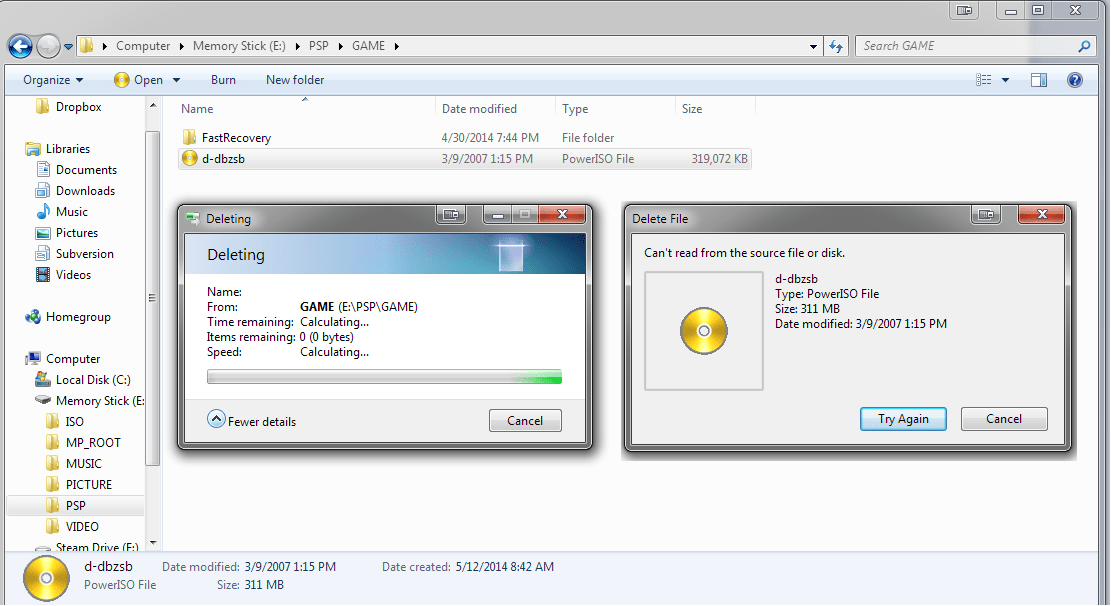
However, many of our customers recently complained while copying, deleting or moving files from Seagate hard drive to external hard drive, or from one location to another, it suddenly prompts a message: can't read from the source file or disk, please don't panic, we will show you the best ways to fix this issue.
BTW, whether you have Seagate hard drive, Western Digital hard drive or SanDisk SD card or other brand flash storage devices, keep on reading this how-to article to solve the problem.
1. Consider recovering data firstly from Seagate Hard drive.
Due to the inaccessible Seagate hard drive, we cannot enter into the partition or external HDD again to rescue the existing files, video, audio, documents, etc. We, therefore, need to use the free data recovery software to get these files back. download netflix episodes on mac
Bitwar Data Recovery is such hard drive data recovery software can restore data from Seagate, Western Digital, Samsung, Toshiba, etc. and it's not only used for the hard drive, but it can also restore data from SD card after formatted or restore data after accidental deletion. Most importantly, there's no need program skill to operate the software, even a newbie can follow the steps to perform hard drive recovery easily and quickly within a few clicks.
Read more? [Solved] Fix can't Read from the Source File or Disk Issue


没有评论:
发表评论